Typing in Yiddish on a Mac
This guide covers the basics of how to type in Yiddish on a Macintosh computer. I specify “Mac” because the instructions require you to install Yiddish Klal, a QWERTY keyboard layout that I originally put together for personal use. (I also made a version for Chromebooks.) The keyboard has been tested on macOS versions from Yosemite through Tahoe. The keyboard is free to use and distribute (see License disclaimer below).
Note that this keyboard implements the standard Yiddish orthography endorsed by YIVO (and codified in this book). If you would like to type without YIVO diacritics, I recommend installing a phonetic Hebrew keyboard or the standard Israeli keyboard layout.
Please click here for a list of external resources based on Yiddish Klal.
(Last updated: January 16, 2026)
Step 1: Download Yiddish Klal v2.0.
For specialized use cases (not recommended for most users): You may want to download Yiddish Klal Ligatur v2.0 instead. See note below.
Step 2: Open the DMG file by double-clicking it.
Step 3: Double-click the “Keyboard Layouts” folder icon to open it in a new Finder window.
Step 4: Drag Yiddish Klal.bundle (or Yiddish Klal Ligatur.bundle) from the installer window into the opened Keyboard Layouts folder. You will need to enter your computer’s password to authenticate. Before continuing to the next step, I suggest restarting your computer.
Step 5: Click the Apple logo () in the upper-left corner of your screen. Then System Settings (or System Preferences). Now, open up Keyboard and then select Input Sources. On the left side of the screen, click the + sign to add a language. You should see Yiddish on the list. There, click Yiddish Klal (with its small komets-alef אָ logo) and Add it to your system. (If Yiddish Klal does not appear, you may need to restart your computer and try this step again.)
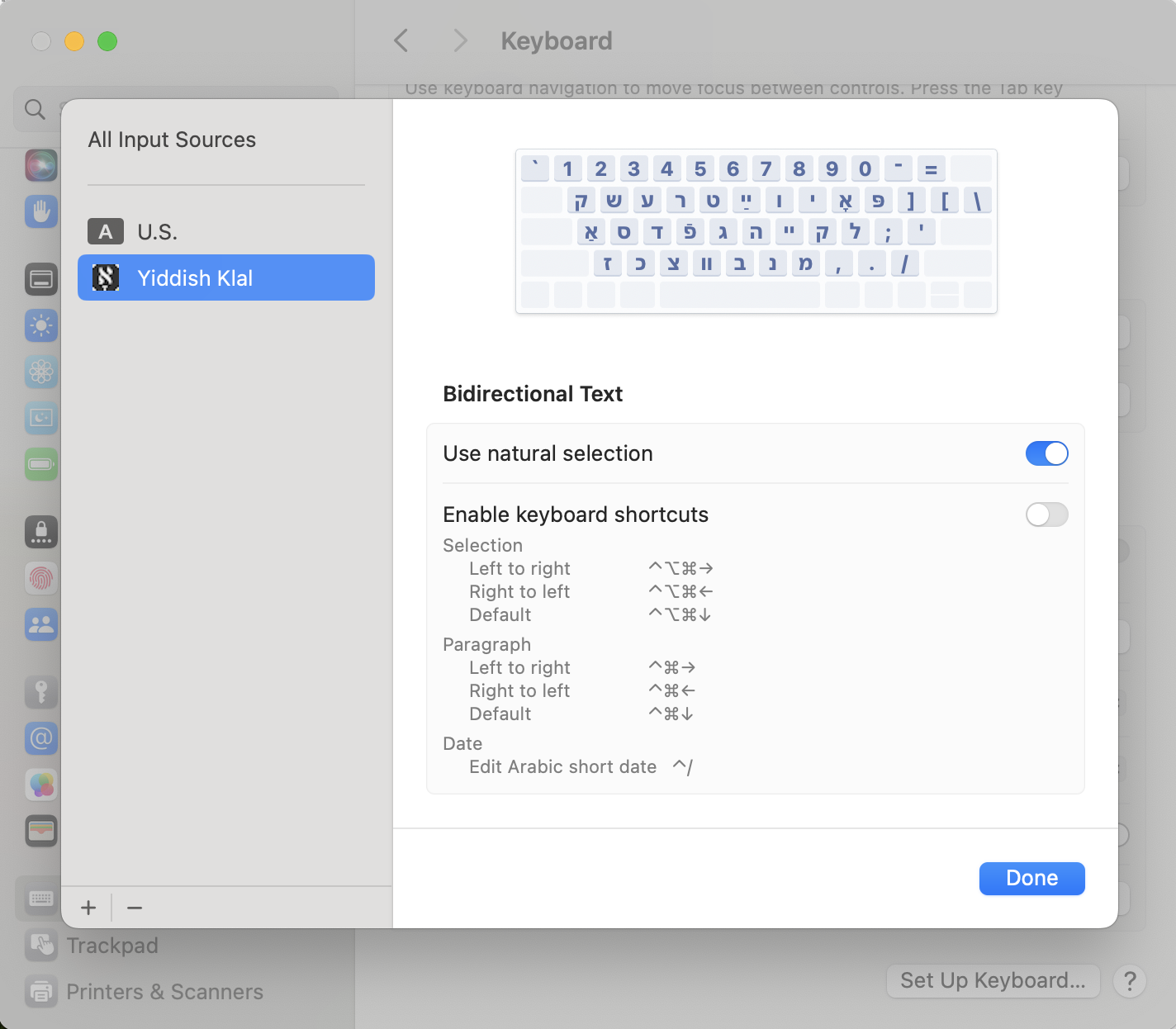
Step 6: At this point, you are good to go! You can switch between keyboards by:
- Pressing the globe key 🌐 in the bottom-left corner of your keyboard (on newer MacBooks), or
- Clicking on the flag/input source icon in the menu bar near your computer’s clock/battery meter
If you’d like to set a custom keyboard shortcut to switch between languages, you can do so in System Settings > Keyboard > Keyboard Shortcuts > Input Sources, and set a keyboard shortcut (e.g., Ctrl+Space) to Select the previous input source. This has the function of going back and forth, say, between the US English and Yiddish keyboards.
Now, how to use the keyboard.
The keyboard is largely phonetic:
- Typing a will yield a pasekh alef, אַ
- o will yield a komets alef, אָ
- e will yield an ayen, ע
- v will yield tsvey vovn, װ (which Unicode treats a single character)
- p will yield a pey, פּ
- f will yield a fey, פֿ
- …, etc.
If you would like to type final letters, hold shift:
- F will yield a langer fey, ף
- M will yield a shlos mem, ם
- …, etc.
Similarly, holding down shift will distinguish between a vov and a melupm vov, a yud and a khirek yud:
- u will yield a vov, ו
- U will yield a melupm vov, וּ
- i will yield a yud, י
- I will yield a khirek yud, יִ
Doublets (when YIVO transliteration corresponds to multiple Yiddish characters):
- t will yield a tes, ט
- T will yield a tof, תּ
- s will yield a samekh, ס
- S will yield a sof, ת
- W will yield a sin, שׂ (w will yield a shin, ש)
- V will yield a veys, בֿ (v will yield tsvey vovn, װ, as mentioned above)
- k or q will yield a kuf, ק
- K or Q will yield a kof, כּ
Other letters will be less intuitive for those familiar with the YIVO system of transliteration, e.g., because it sometimes uses a combination of several Latin letters for a single Yiddish letter (e.g., צ is [ts]). These letters will need to be memorized:
- A will yield a shtumer alef, א
- x will yield a khof, כ (and X a langer khof, ך)
- H will yield a khes, ח (h is just a hey, ה, as expected)
- c will yield a tsadek, צ (and C a langer tsadek, ץ)
- w will yield a shin, ש (and W a sin, שׂ)
- j or E will yield tsvey yudn, ײ (a single Unicode character)
- y will yield pasekh tsvey yudn, ײַ (two Unicode characters)
- O or Y will yield vov yud, ױ (a single Unicode character)
Letter combinations in Yiddish:
- For זש type either zw or, as a shortcut, type Z
- For דזש type either dzw or, as a shortcut, type G or J or D
- For טש type either tw or, as a shortcut, type R (mnemonic: between the t and w on the keyboard)
Finally, useful punctuation:
- - will yield a makef, ־ (the higher hyphen recommended by YIVO; hold down Shift to get the English one; press Option/Alt + hyphen to get a longer dash.)
- } and { will yield „ and “ respectively (if you actually want curly braces, press Option + [ or ]).
I hope these instructions are enough to get you going!
Good luck! מיטן רעכטן פֿוס!
Benefits of this keyboard over other layouts out there:
- Since Yiddish has no capital letters, this keyboard allows you to select Caps Lock for quick access to a full US English keyboard. This is especially useful if your Mac logs you off while you’re still in Yiddish mode, and you need to type in your password in English. (And if you select Shift while Caps Lock is enabled, you can type capital letters in English.)
- Letter combinations like דזש and זש are easier to type, if you choose.
- The hyphen symbol two spaces to the left of Backspace/Delete is the hyphen (makef) preferred by YIVO. Earlier keyboards had this symbol hidden elsewhere.
If you happen to use this keyboard to type in Hebrew or other Yiddish orthographies (not recommended, but workable), you will likely need to hit backspace in order to remove diacritics from certain letters. But bear in mind how you can access the following characters:
- P is פ (fey/pey without any diacritic); B is בּ (beys with dogesh); Option+x = כֿ (khof with rofe); Option+t = תֿ (sof with rofe); Option+\ is ׳ (geresh; the angled chupchik, or abbreviation symbol); Option+| is ״ (gershayim; the angled acronym symbol); Option+= is ⸗ (double oblique hyphen used in some Yiddish publications); Option+' is ′ (Unicode prime); Option+" is ″ (Unicode double prime); Option+: is ” (a variant of the Yiddish close-quotation mark that you will likely never use).
Note about Yiddish Klal Ligatur
In September 2016, Google Docs introduced a bug such that it was no longer possible to input multiple Unicode characters with a single keystroke (e.g., typing a would normally yield אַ, which is a Unicode alef followed by a Unicode pasekh; hitting backspace one time deletes the pasekh, a second time deletes the alef). This bug prompted me to create a spin-off version of Yiddish Klal that uses “pre-combined” Unicode characters (e.g., אַ is now a single character, still located under the a key; hitting backspace once removes the entire ligature). This other version is called Yiddish Klal Ligatur, and the link can be found under Step 1. Unfortunately, very few fonts support these precombined Unicode characters. Note that both keyboard layouts can be safely installed on the same machine; the icons are identical, but the names differ. Note also that sometime in early 2018, Google Docs fixed the bug. However, I am leaving Yiddish Klal Ligatur available should a similar problem arise in the future.
External resources
-
Yiddish Klal is based on the QWERTY keyboard layout used in the US. Toma Tasovac has adapted a version of Yiddish Klal for the QWERTZ layout, which may be useful to European users. Henry Gustafson has put together a version based on the Dvorak layout. Please contact them to report any bugs. (I have not used these keyboard layouts myself.)
-
Samuel Lo has put together a keyboard layout that combines the character sets of Yiddish Klal and Yiddish Klal Ligatur (the latter accessible by pressing the ⌥ Option key), which may be useful to those developing software applications in Yiddish. Please contact him to report any bugs.
License disclaimer
Yiddish Klal and Yiddish Klal Ligatur are free Standard Yiddish keyboard layouts created by Isaac L. Bleaman (bleaman [shtrudl] berkeley.edu). This work is licensed under Creative Commons Attribution-ShareAlike 4.0 International.